

Note: Flow will not move ahead until the user gives the requested information to the bot.
1. Name
 2. Phone Number
 3. Email
 4. Single Choice
 5. Multiple Choice
 6. Text Questions
 7. File Upload
 8. Iframe
 9. Appointment
 10. Location
 11. Date/Time
 12. Rating
 13. Range
14. Numeric Input
15. Smart Question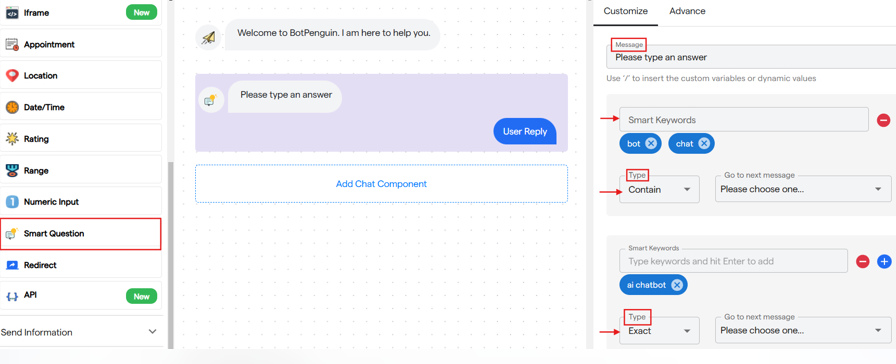
16. Redirect
17. API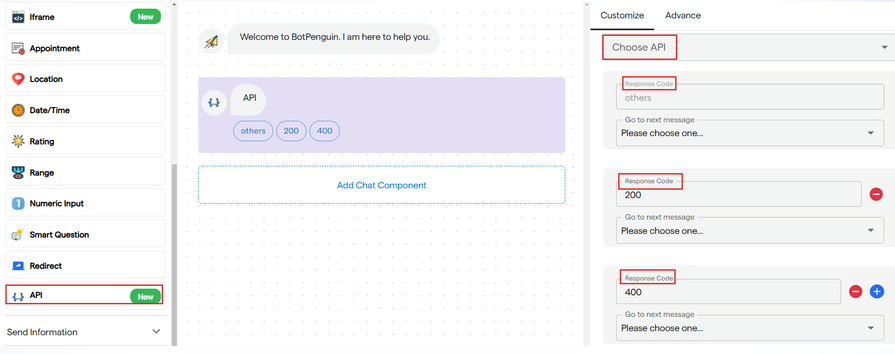
1. Name
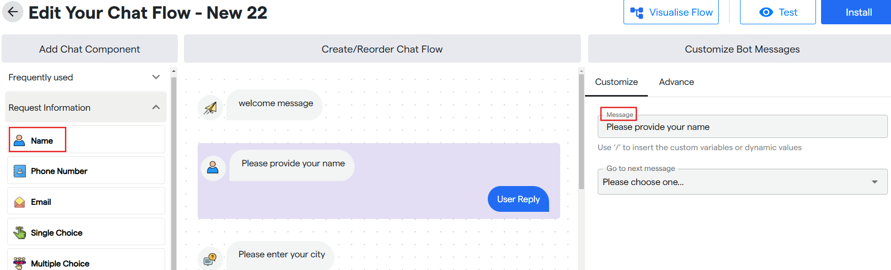
- It is used to request "name" as information from the user.
- Click on "Name" from the Add Chat Component.
- Then you can customize the name request message from the customize bot message.
2. Phone Number
- It is used to request a "phone number" as information from the user.
- Click on "Phone Number" to add into your flow.
- Then you can customize the phone number request message from customize bot message.
- You can also select a specific country code for the same by clicking on the drop down.
3. Email
- It is used to request "Email" as information from the user.
- Click on "Email" to add it in your flow.
- You can customize the email request message from the customize bot message panel.
4. Single Choice
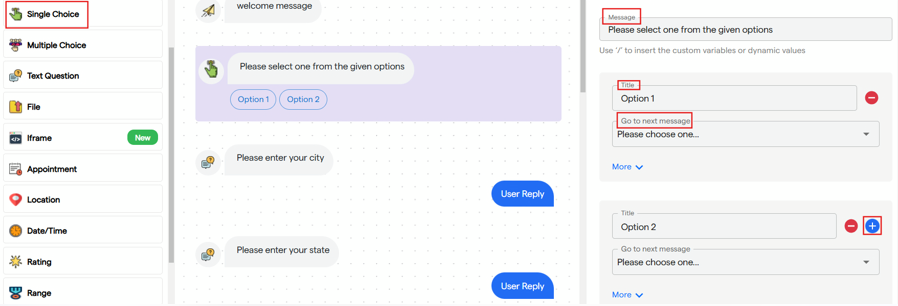
- It is used to give a single choice selection request from the user.
- Click on "Single Choice" to add it in your flow.
- You can customize the message, title for your options and link the next component with them.
- You can add up to 5 options.
5. Multiple Choice
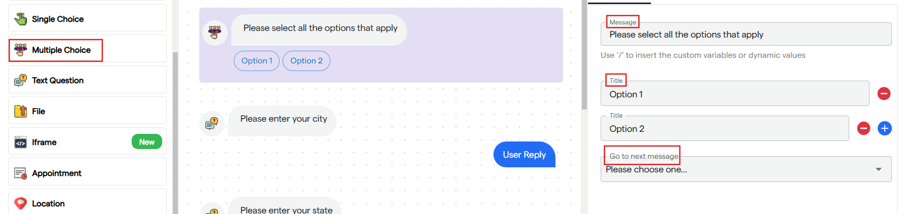
- It is used to give a multiple choice selection request from the user.
- Click on "Multiple Choice" to add it in your flow.
- You can customize the message, title for your options and link the next component with them.
- You can add up to 5 options.
6. Text Questions
- It is used to request "any answer" as information from the user.
- Click on "Text Question" to add it in your flow.
- You can customize the information request message to ask for an answer from the user accordingly.
7. File Upload
- It is used to request a "file, image or video" as information from the user.
- Click on "File" to add it in your flow.
- You can customize the file request message from the right panel.
8. Iframe
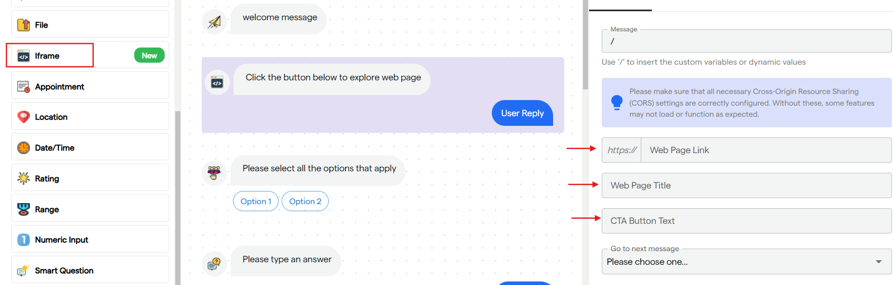
- You can add a text message about iframe you are adding.
- Paste the URL for the web page.
- Give a title to the iframe.
- Add a CTA button on which user can click and can be redirected.
- Once clicked web page will be opened.
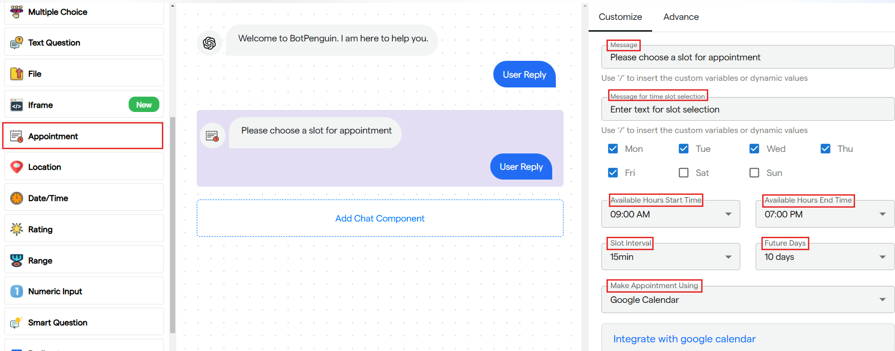
9. Appointment
It is used to book an appointment and slot for users.
- You can configure the message text and add a message to ask user to input time slot.
- You can select availability hours start time from the drop down and its end time. User will have open to book in time between availability hours.
- Select slot intervals according to which later booking will be done and time gap will be made.
- Select future booking days for which slots will be available to be booked.
- Then select a third party app to integrate with bot for appointment booking.
10. Location
- It is used to request textual location from user.
- Click on "Location" to add it in your flow.
- Enter message text to ask for location from user as information.
11. Date/Time
It is used to take Date and Time as an input from user.
- You can enter a message text to request the same and checkbox to show time selection option.
- User will get option in calendar to select the date and exact time for that date.
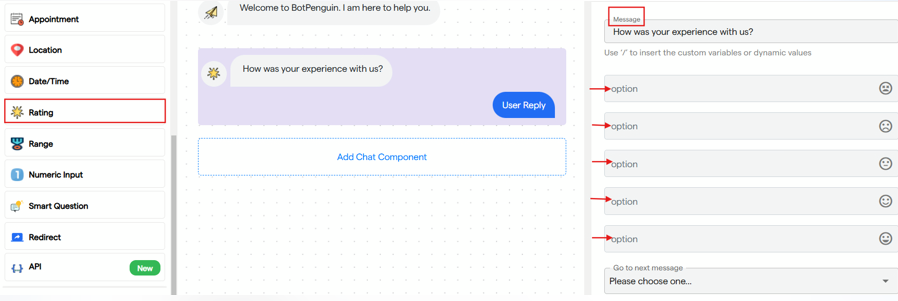
12. Rating
- It is used to ask user to give rating and share their experience.
- You can enter a text message for the same and add 5 different options for user experience which can be selected by user.
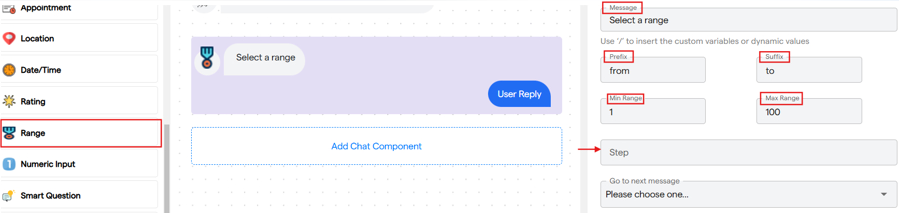
13. Range
It is used to ask user a range according to the requirements.
- You can enter a text message for the same.
- Add a prefix and suffix text to be used in range.
- Then select the starting point and highest point to be selected in the range.
- You can also select a step you want to use as gap in the range slider.
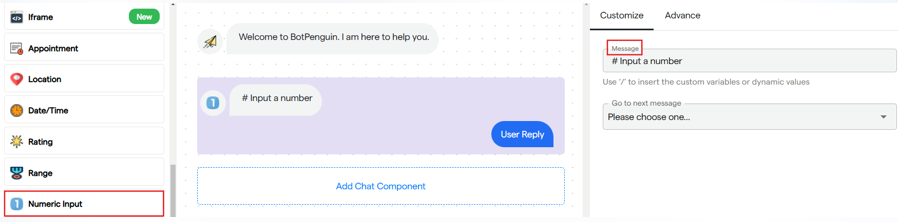
14. Numeric Input
- It is used to take a numerical input from the user.
- Click on "Number Input" to add it in your flow.
- You can add a text message to request user to enter a numerical value.
15. Smart Question
It is used to ask user answer according to which the next chat flow will be decided.
- You can enter a text message or your question.
- Then enter keywords based on which next chat component will be selected.
- You can select smart keyword match type, it can be either exact or the keywords should be present in the answer.
- You can add multiple smart keywords.
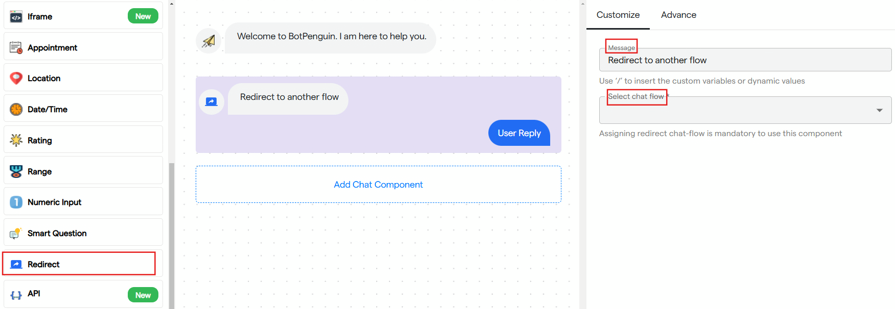
16. Redirect
- It is used to start a new flow which is created for this same bot.
- You can enter a text message and select the pre-build chat flow from the drop down.
- Once the component is triggered, the other selected chatflow will continue in the chat.
17. API
It is used to use a third party integration in chat flow.
- You can select the API.
- You can then add text to response code and select the next message.
- Response Code 200 is for success and 400 is for error.


