Account
This section tells us how to configure the Account section of the Omnihubs Platform
What is the Account Section
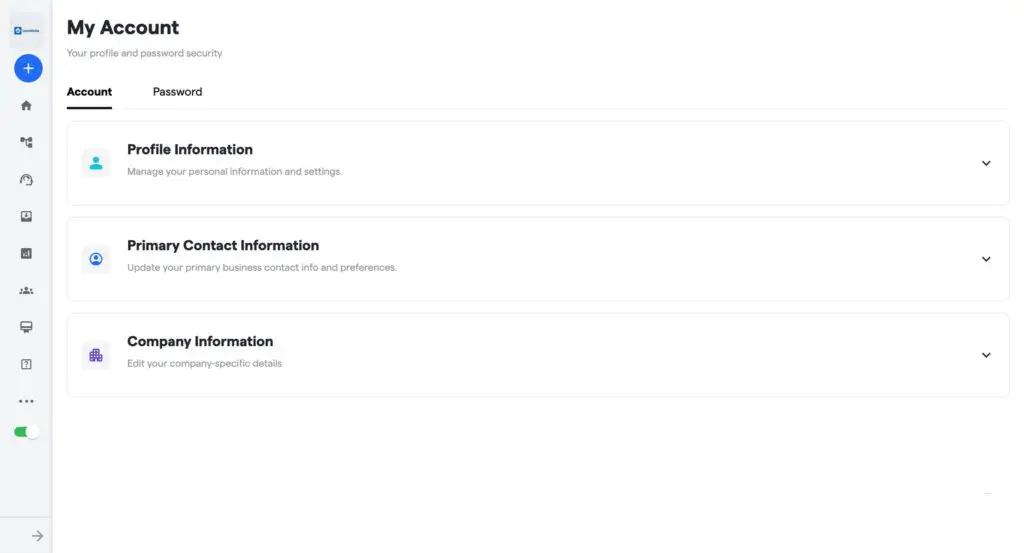
The Account section in Omnihubs allows you to manage and update your personal details, contact preferences, and company information—all from a single dashboard. This section is structured for clarity and control, helping users keep their profiles, business contacts, and organizational details accurate and up to date. Whether you’re customizing your profile or updating your company’s industry classification, the Account section keeps your data organized and ready for platform use.
Benefits of the Account Section
- Centralized Information: Update all key account-related details in one place.
- Business Profile Management: Ensure your business contacts and branding are always current.
- Company Insights Alignment: Tailor your company information to match platform features with your industry and scale.
How to use the Accounts Section on Omnihubs
- Log in to Your Omnihubs Account Visit app.omnihubs.io and log in using your registered credentials.
- Navigate to the Sidebar On the left-hand sidebar, scroll down and click on “More”, located just beneath the Help Center.
- Access My Account From the expanded menu, click on “My Account”. By default, the Account tab will open first.
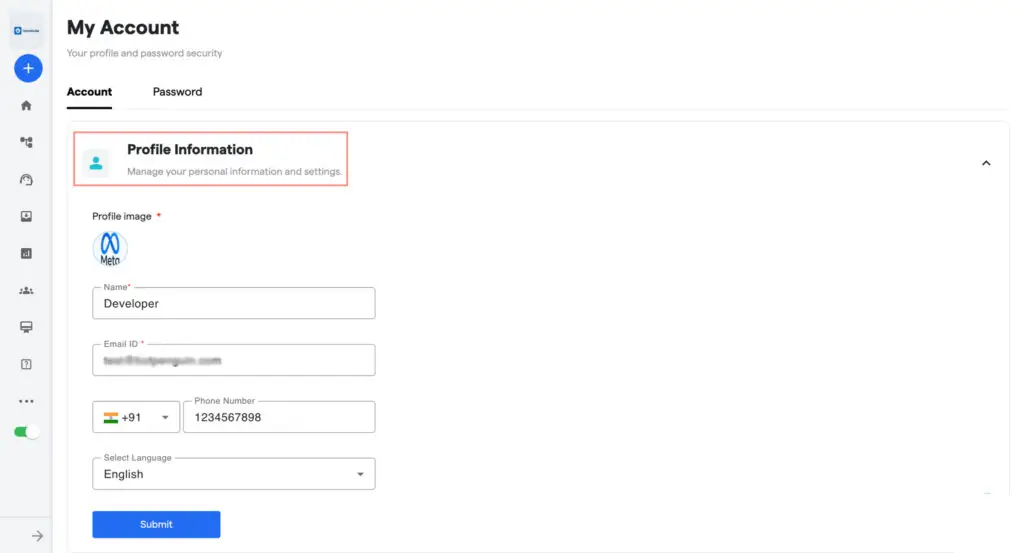
4. Edit Profile Information In the first card labeled Profile Information, you can update your profile picture, name, email address, connected phone number, and select your preferred platform language. After making the changes, click Submit to save them.
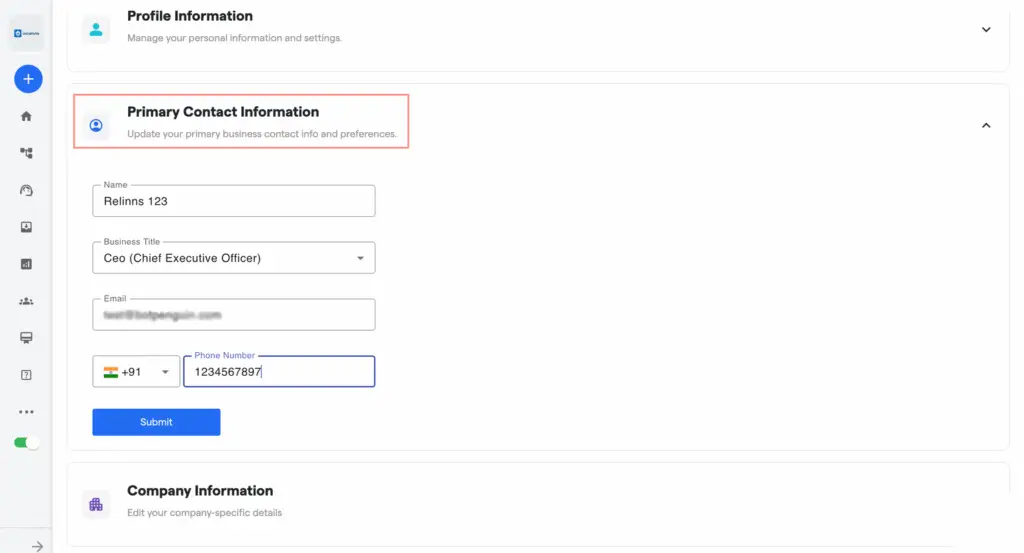
5. Edit Primary Contact Information The second card is titled Primary Contact Information. Here, enter or update the primary contact name, business title, business email address, and business phone number. Once complete, click Submit to save your updates.
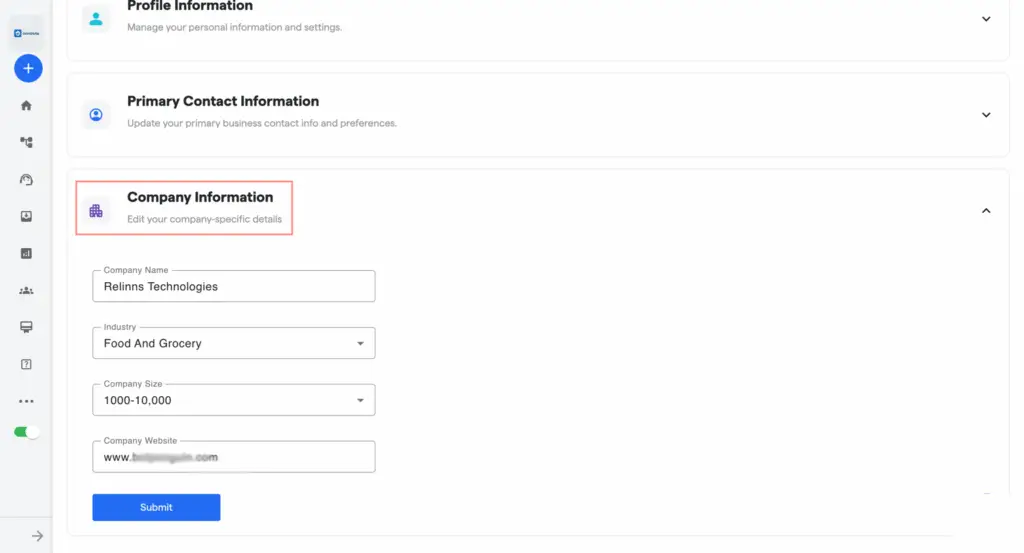
6. Configure Company Information The third card is Company Information. In this section, you can modify your company name, select your industry from options like Finance, Education, Food, Automotive, etc., choose your company size from the dropdown (e.g., 1–10, 10–100, 100–1000+), and enter your company website. After updating, click Submit to finalize the changes.
FAQ's
Lorem ipsum dolor sit amet, consectetur adipiscing elit. Ut elit tellus, luctus nec ullamcorper mattis, pulvinar dapibus leo.
Where can I find the Account section in my dashboard?
Go to More → My Account, and the Account tab will be the first screen you see.
Can I change my email address here?
Yes, under Profile Information, you can update the email address associated with your login.
What is the primary contact information used for?
It is used to store and manage your business’s main point of contact for communication and preferences.
Can I change the language of the platform?
Yes, you can select your preferred platform language in the Profile Information section.
What industry options are available for company classification?
Options include Finance & Banking, Food & Grocery, Education, Entertainment, Automotive, and others.


