
Prompt Style
This page guides the user on how to configure the prompts of their AI Agent.
What is this?
The Prompt section allows you to define the behavioral logic and operational purpose of your AI Agent. This is where you instruct the agent on what it’s supposed to do and how it should handle conversations.
Why is it beneficial?
Establishes your AI Agent’s operational scope and responsibility
Enables deeper customization of conversation flow and automation triggers
Connects instructions with internal tools, attributes, and logic
Drives consistent and context-aware engagement with your users
How to configure it
Go to Omnihubs and log in to your account.
Click on Agents from the sidebar, then select your AI Agent.
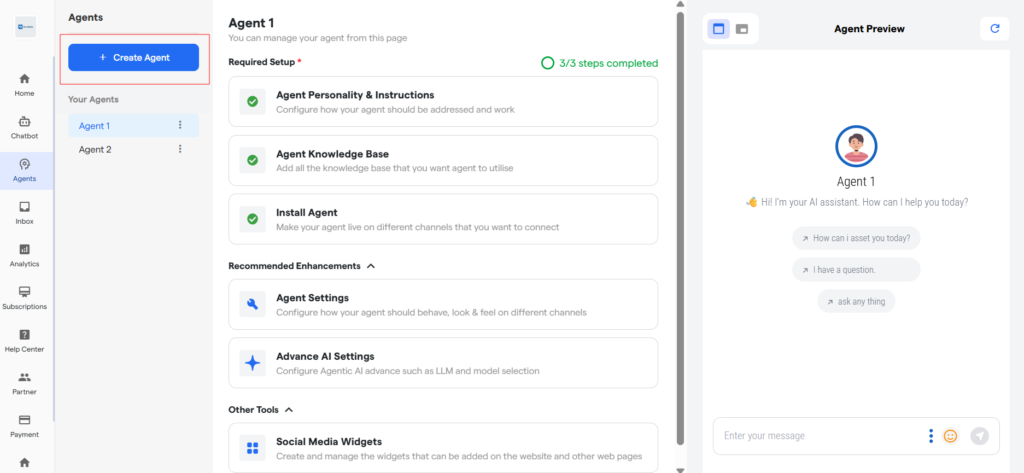
3. Navigate to the AI Agent Personality & Instructions section.
4. Click on the Prompt tab within this section to open the configuration screen.
5. In the Core Instructions field, enter the main directive that defines the agent’s purpose and capabilities. This prompt is usually filled during the initial AI Agent setup. You can update it here to refine the agent’s role, tone, or knowledge base. Use “/” to reference automation tools or custom attributes.
Example: “Act as a scheduling assistant. Help users book calls. Use /calendar-check before confirming.”
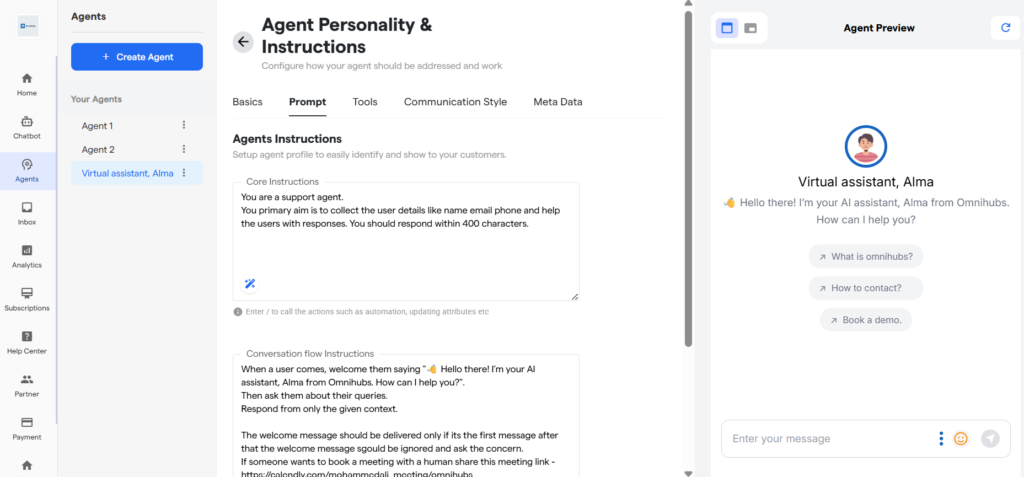
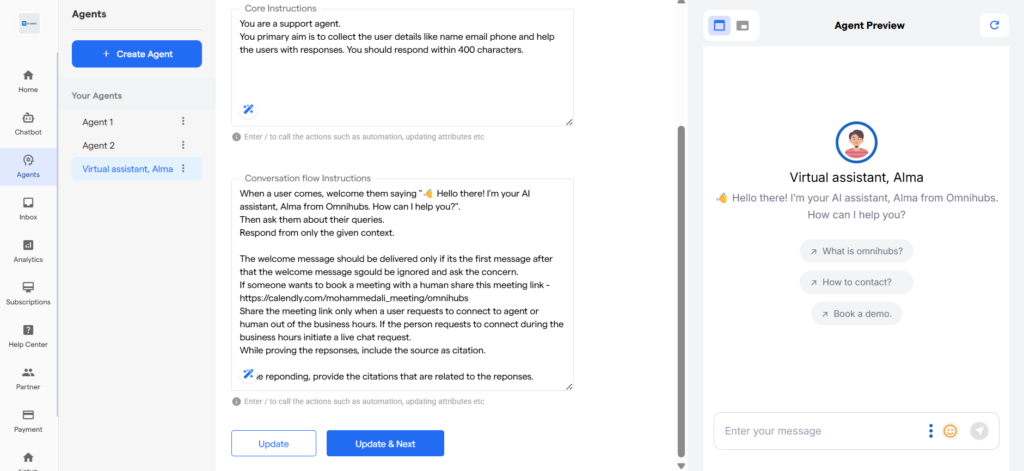
6. In the Conversation Flow Instructions field, define how the agent should drive interactions step by step. This includes the logic to handle queries, check conditions, or guide the conversation flow. Use “/” to trigger conditions, attributes, or automations dynamically. Example: “Start with a greeting. Ask what the user needs. If it includes ‘support’, route to /ticket-generator.”
7. Once both instructions are defined, click Update or Update & Next to save your settings.
Need Help?
If you experience any issues while setting up your agent’s basic configuration or the changes don’t reflect properly, please contact us at support@tandtglobal.net. Our support team will get back to you within 48 business hours.


