
Creating and Managing Teams
This page contains all the necessary information regarding the “Teams” section of the Omnihubs platform.
In the Teams section, you can create and organize teams based on your needs. You can assign specific team members to a particular department.
What is Teams?
Teams allow you to group members inside Omnihubs for better conversation management, role control, and workload distribution.
By creating teams, you can organize agents based on departments (like Sales, Support, or Marketing), assign chats efficiently, and maintain structured internal collaboration.
Benefits of Teams
- 🎯 Organize agents into structured departments.
- ⚡ Improve chat assignment and workload distribution.
- 🔐 Control access and permissions through role mapping.
- 📊 Monitor team-level performance efficiently.
- 🤝 Enable smoother collaboration between members.
Manage Teams
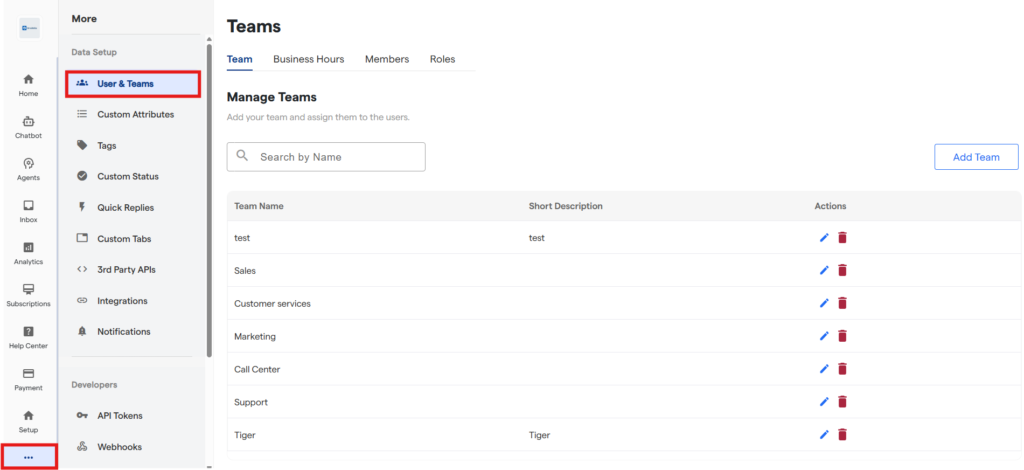
- Navigate to the More -> User & Teams section.
Create a New Team
Go to the “More” section from the left sidebar.
Click on “User & Teams”.
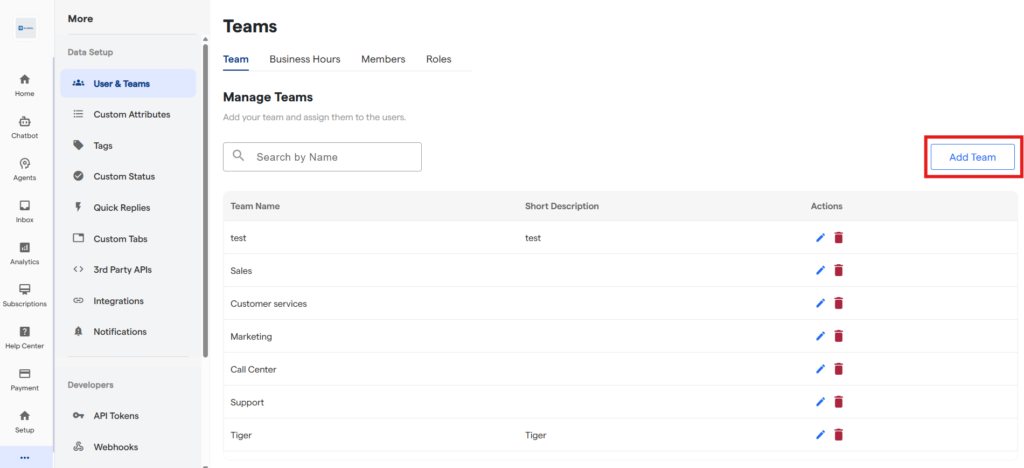
Ensure you are inside the Team tab.
Click on the “Add Team” button.
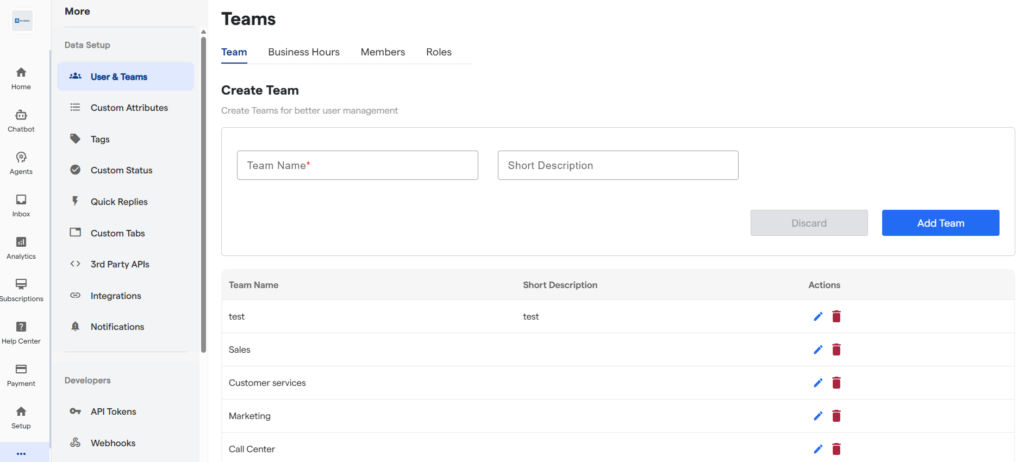
5. Enter the Team Name (mandatory field).
6. Add a Short Description (optional but recommended).
7.Click on “Add Team “ to create the team.
Edit an Existing Team
Once the team is created then edit the existing team details
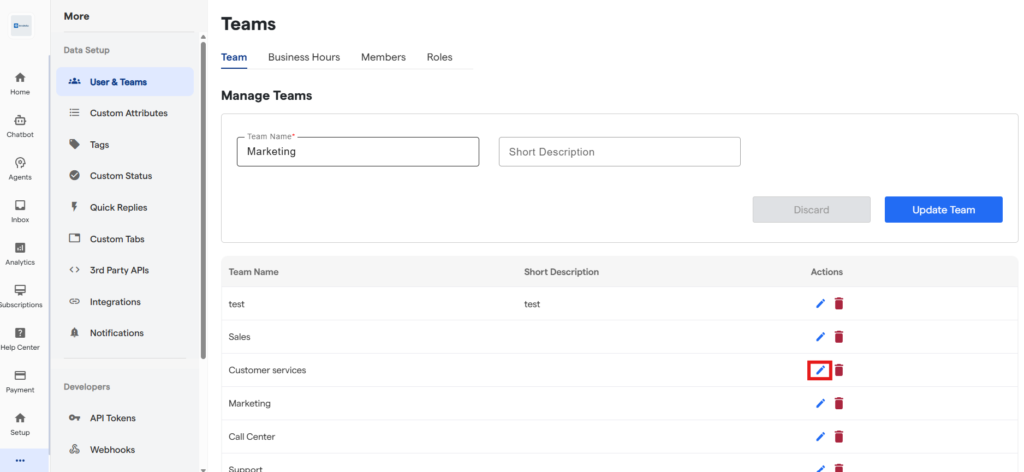
Navigate to the “Team” list inside “User & Teams”.
Locate the team you want to modify.
Click on the Edit icon under the “Actions” column.
Update the required fields and save changes.
Delete a Team
Go to the “Team” tab.
Find the team in the list.
Click on the Delete icon under the “Actions” column.
Confirm the deletion when prompted.
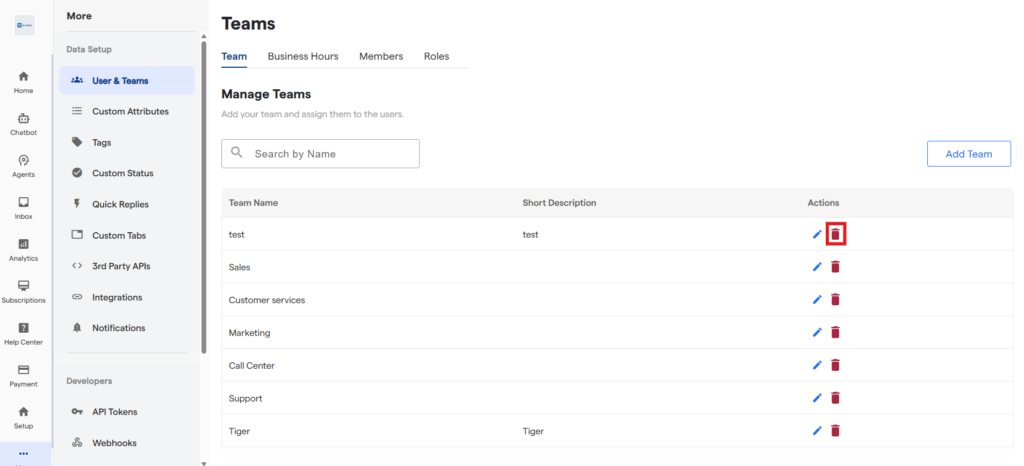
Deleting a team may impact assigned members or workflows. Ensure reassignment before deletion.
🎉 Congratulations, you have successfully completed this section!
Teams FAQs
Can I create multiple teams inside Omnihubs?
Yes, you can create multiple teams to organize agents based on departments, projects, or responsibilities.
Is the Short Description field mandatory?
No, only the Team Name is mandatory. However, adding a description helps identify the purpose of the team.
What happens if I delete a team with active members?
Deleting a team does not delete users, but it may affect assignments and workflows. It is recommended to reassign members before deletion.
Can one user belong to multiple teams?
Yes, depending on role permissions, a user can be assigned to multiple teams.
Does creating a team automatically assign chats to it?
No, teams need to be configured within routing or assignment settings for automated chat distribution.
Who can create or manage teams?
Only users with administrative or authorized role permissions can create, edit, or delete teams.


