
ChatGPT
Ready to ride the GPT wave? Read all about how to join the automation revolution with OmniHubs here.
What is ChatGPT Integration?
The ChatGPT Integration enables your bot to leverage OpenAI’s advanced natural language capabilities directly inside OmniHubs. By connecting your OpenAI API key, you unlock contextual responses, powerful reasoning, and more human-like conversational flows.
Benefits of ChatGPT Integration
⚡ Enhances conversational intelligence for more dynamic user interactions.
🤖 Provides contextual and human-like responses with minimal training overhead.
🎯 Reduces manual scripting efforts by generating responses on the fly.
🚀 Boosts customer satisfaction with smart, fast, and accurate answers.
🛠️ Integrates seamlessly with your existing chatflows and automation logic.
Steps to Integrate OmniHubs with ChatGPT
Step 1 of 5: Log in to your OmniHubs Account and Select ChatGPT Integration
- Login to your OmniHubs account. Then, select and click the Bot you want to integrate with ChatGPT. Click on the “Third Party Apps Integration”
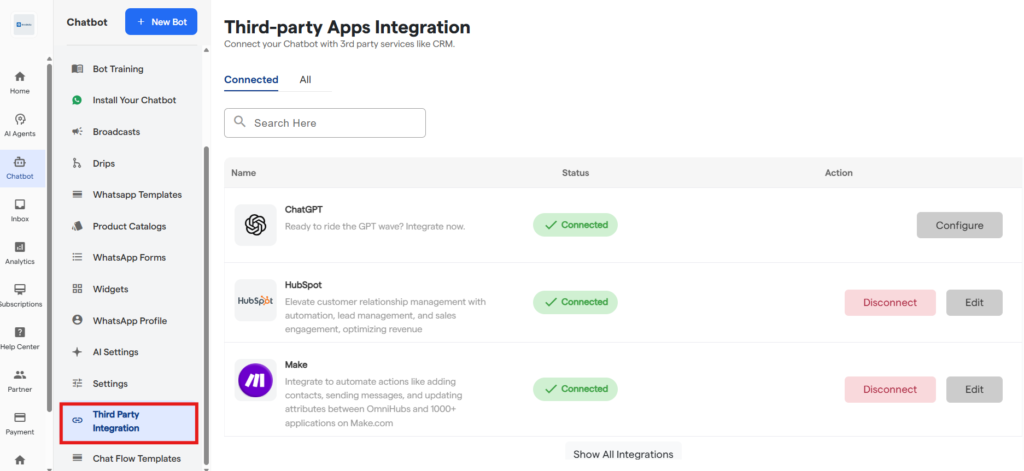
2 . A list of all native integrations for OmniHubs will be available in this window. Find ChatGPT by
Either by scrolling down the list, or
By typing ‘ChatGPT’ in the Search Box with the placeholder “Search Here”.
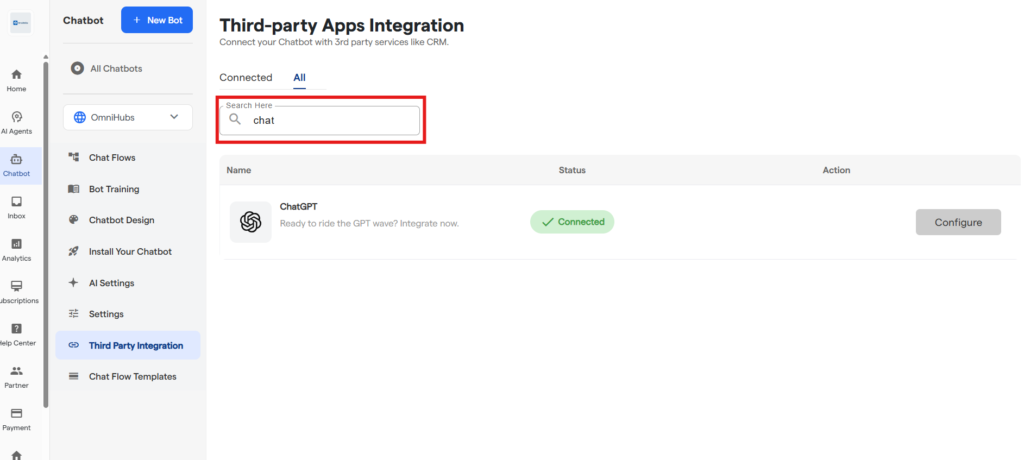
3 . Click On The ‘Connect’ button as shown.
4. An Integration Details page will show up. Continue by clicking on the “Connect” button.
5. Enter all the details shown on the subsequent page to connect ChatGPT to your chatbot.
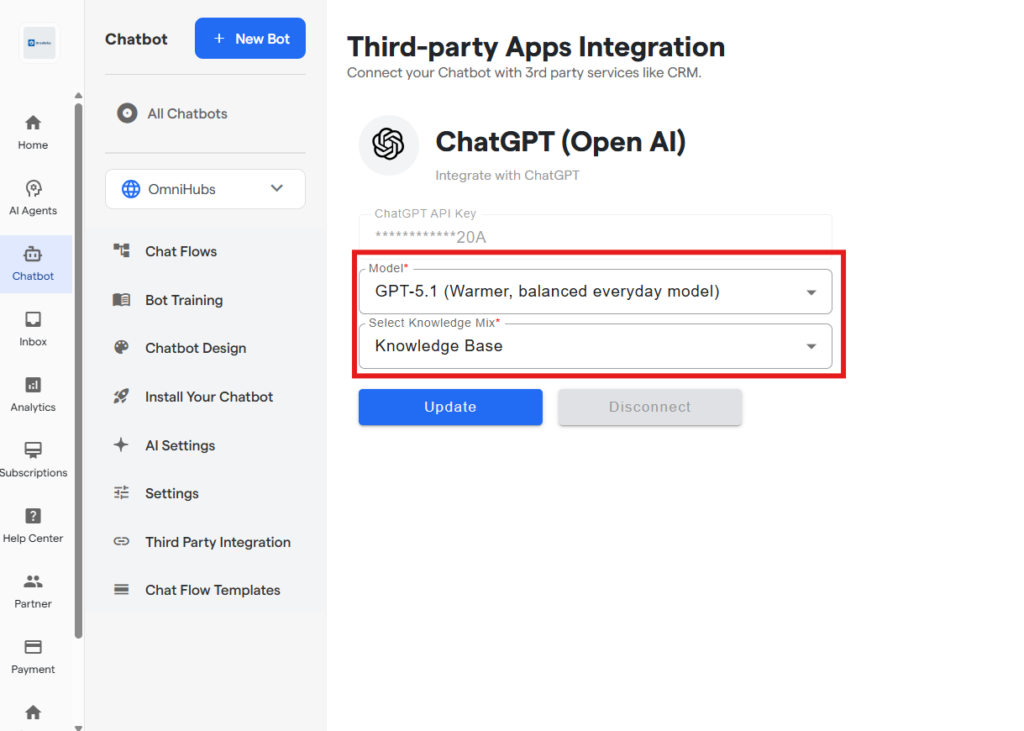
Step 2 of 5: Find your Authorization Key/Token in App Account
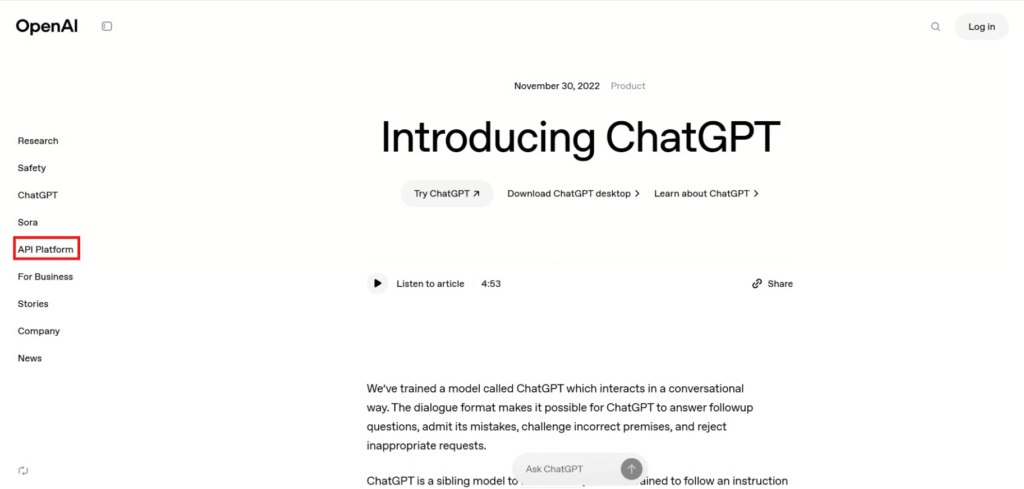
- To get the API Token, log-in, or create the Open AI account, and on the main dashboard.
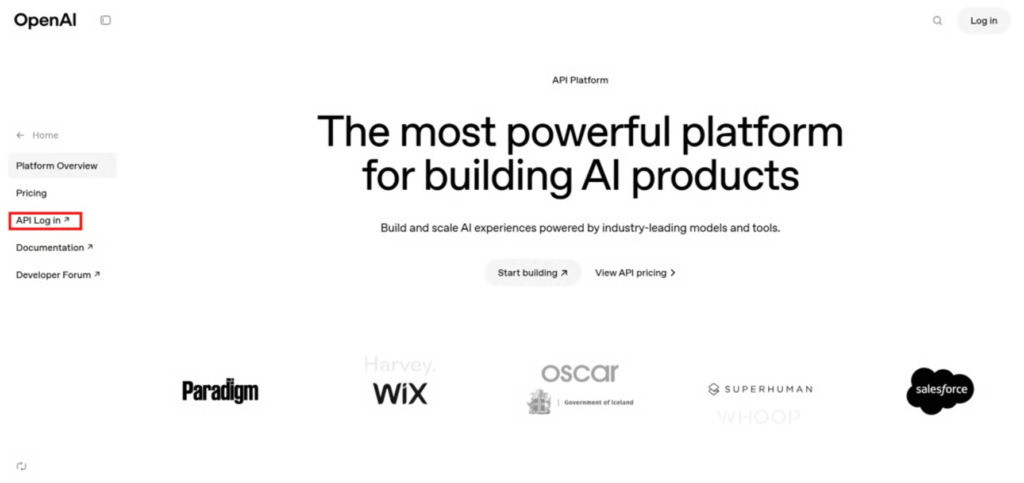
Click on the “API Platform” on the left hand side, followed by the “API login“.
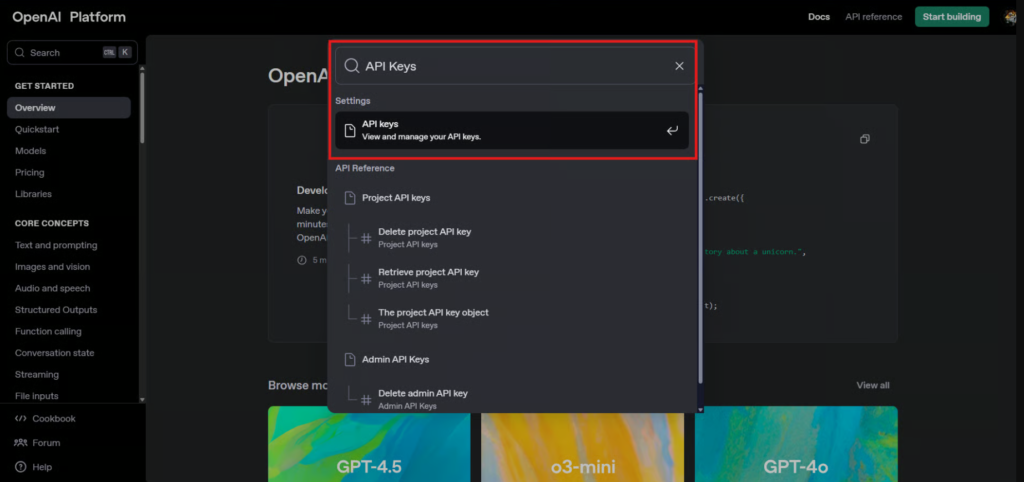
3. You will be directed to the “platform.openai.com/docs/overview” page, where search for “API Keys” in the search bar and select the option.
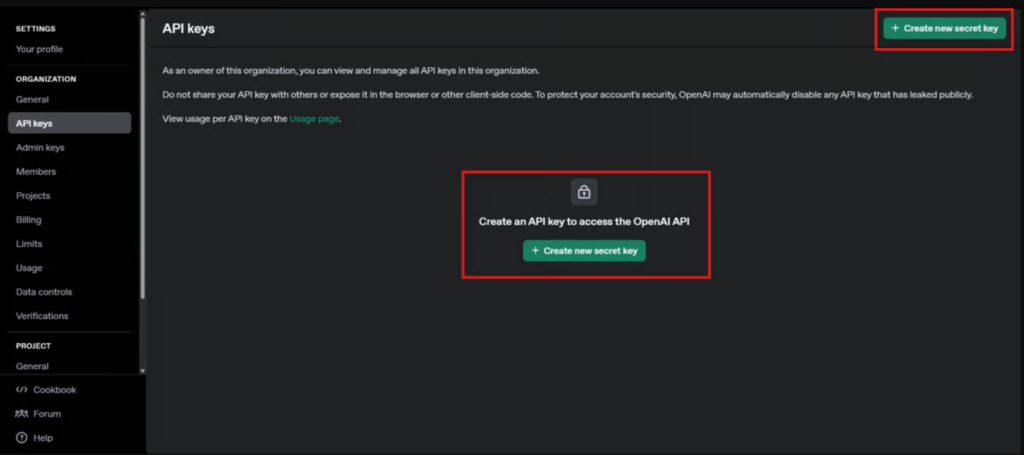
4. The page that opens will contain options to create new API keys. Click on the “Create new secret key” button in the center.
5.Enter the required details on the opened form. Choose the service account. The details include:
Service Key Name(Optional): The name of the API key.
The Project for which the key will be used.
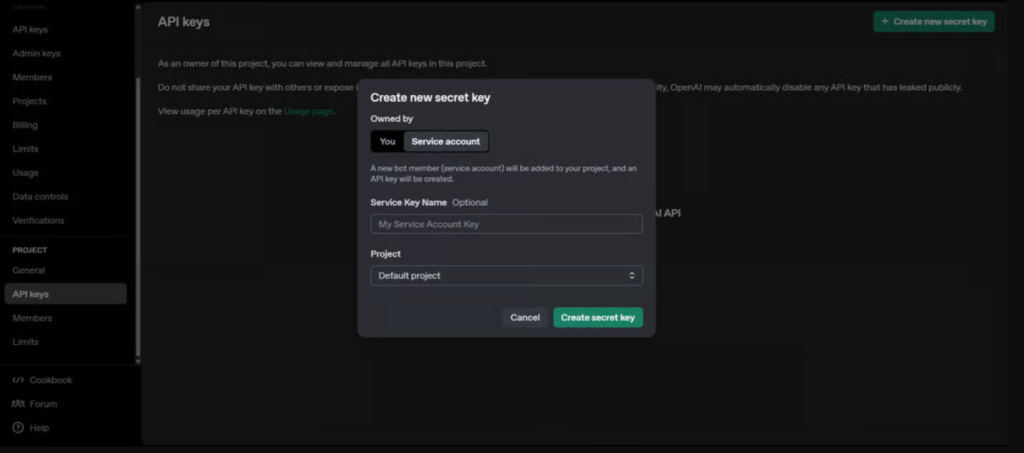
6. After entering the relevant details and clicking “Create secret key”, the secret key will be created. Save the key in a secure method, as you won’t be able to view it again.
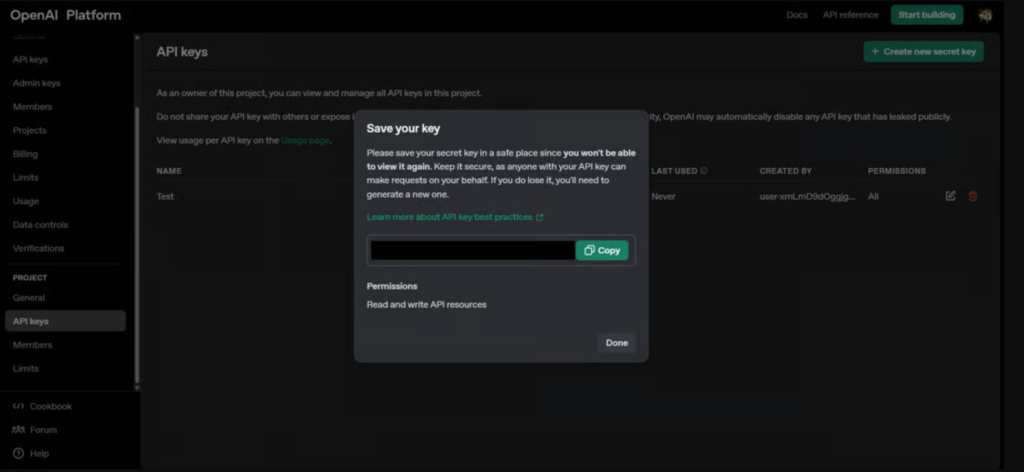
7. Click on “Done“, and the following will be displayed:
Remember to add credits to the API token, as without the token, the API key will remain inactive and will give error if used.
Step 3 of 5: Adding Credits to ChatGPT:
- To add credits to your ChatGPT token, open the left hand sidebar. You will see a billings tab. Proceed to click on the “Billing” Tab.
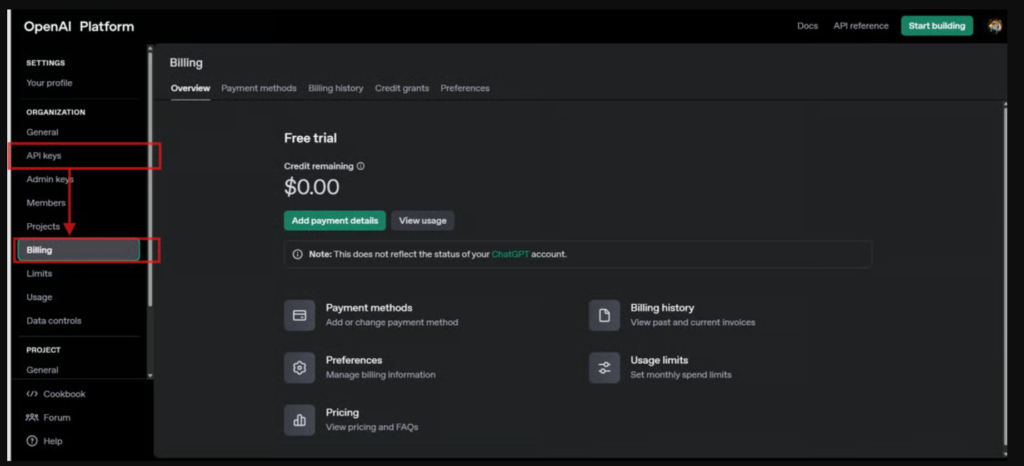
2. Click on “Add Payment details” and input of details.
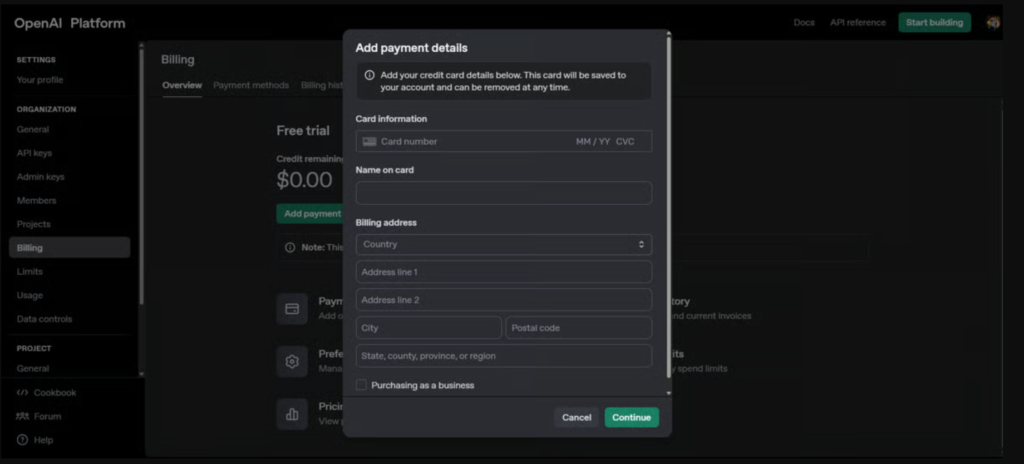
The OpenAI platform only accepts credit cards as viable payment options.
3. Once all the details have been added, click on continue to save the details. Now, all your keys will have credits, and will be viable keys.
Step 4 of 5: Enter the API key in OmniHubs to Connect with ChatGPT
- Enter the secret key, and press Authenticate, to complete the integration of OmniHubs with ChatGPT.
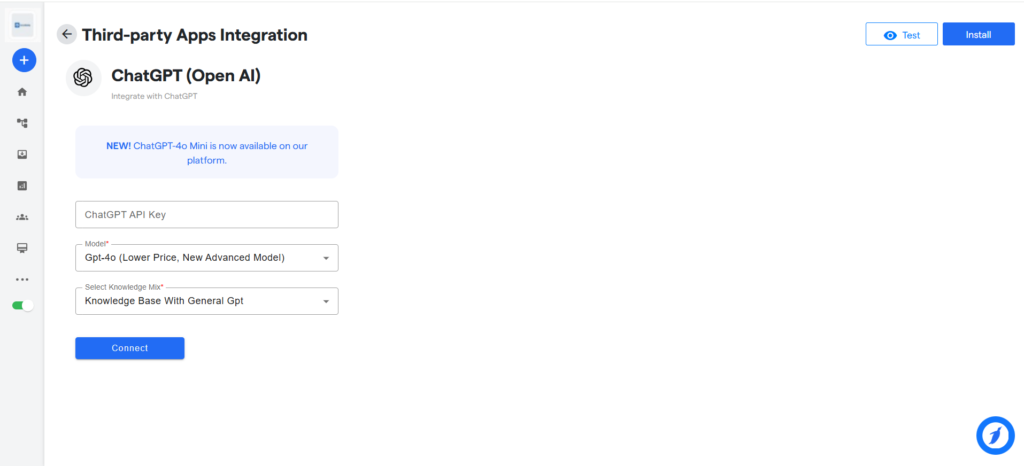
2. Also select which model of ChatGPT you want to have integrated with the bot. The o options for the same are:
GPT 3.5
GPT 4
GPT 4 Turbo
GPT 4o
Assistants Beta*
3. Lastly, choose the from where you want the bot to gain its training/information from:
General: Work just like a general ChatGPT
Knowledge Base: Work only with the knowledge it was trained for.
Knowledge Base With General GPT: Work with a combination of both.
4. Click on connect. If configured properly, ChatGPT should properly connect to the bot.
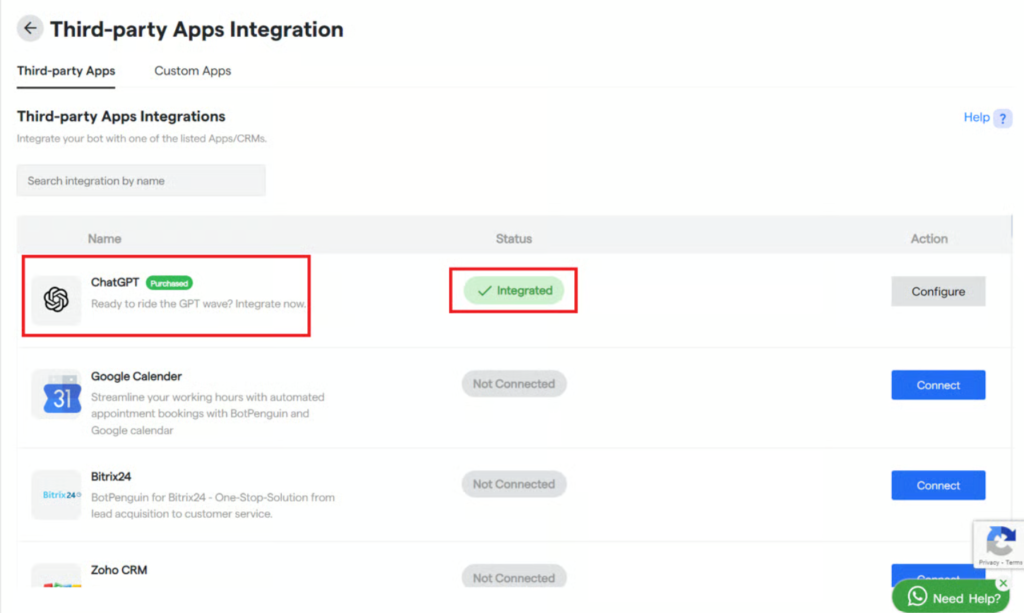
5. Also, your ChatGPT integration will reflect the message Installed in the Integration List.
Step 5 of 5: Test your Integration Setup with Data
Once you have established a connection between OmniHubs and ChatGPT, you are ready for your first NLP-enabled customer interaction. You can test your integration setup by creating a dummy lead on the bot.
FAQ's
Why am I getting blank or incomplete responses from ChatGPT?
This typically happens when incorrect API credentials are entered or when the OpenAI project lacks credits. Verify the API token and key, confirm the integration URL is correct, and ensure your OpenAI project has active billing and available credits.
Why is my ChatGPT integration showing an error even after entering the API key?
Errors commonly occur when the API key is associated with an inactive project or the key lacks required permissions. Confirm the project is active, payment details are added, and the generated secret key was copied and pasted in full without extra whitespace.
Do I need a paid plan to integrate ChatGPT with OmniHubs?
Yes. OmniHubs requires an active paid subscription for ChatGPT integration, and the OpenAI account used for the API key must also have a paid plan with billing enabled.
Why is my bot giving irrelevant or low-quality replies?
Low-quality responses typically indicate inadequate or poorly structured training data. Review the bot’s Knowledge Base content, refine prompts and context in your chatflow, and select the appropriate model mode (General, Knowledge Base, or Hybrid).
Why is ChatGPT not appearing inside the chatflow after integration?
The ChatGPT component becomes available only after successful authentication. Revisit the Integration page, confirm the status shows Installed, and validate that the API key was authenticated successfully.
What should I do if my API key is lost?
OpenAI does not allow re-displaying secret keys for security reasons. Generate a new secret key in the OpenAI dashboard and update the key within the OmniHubs configuration.
Which ChatGPT models can I use inside OmniHubs?
OmniHubs supports models based on your OpenAI subscription and permissions, including GPT-3.5, GPT-4, GPT-4 Turbo, GPT-4o, GPT-5, and Assistants Beta where applicable.
Why is my API key not being accepted on OmniHubs?
Confirm that the key belongs to the correct OpenAI project, has not been revoked or expired, and was copied exactly (no missing characters or additional whitespace). Also verify there are no organization-level restrictions on the key.
Can I use ChatGPT only with a Knowledge Base?
Yes. You can configure ChatGPT to operate in one of three modes:
General — standard ChatGPT behavior.
Knowledge Base — responses restricted to your uploaded data.
Knowledge Base + General — hybrid mode combining your data with general model capabilities.
What should I do if none of the troubleshooting steps help?
If you have tried all the troubleshooting steps and are still experiencing issues, please contact OmniHubs support for further assistance. Provide detailed information about the problem and any error messages you have encountered to help us resolve your issue more efficiently.
Still Not Working, Let’s Troubleshoot!
If you are getting blank responses or undesired responses :
Wrong Authorization Details– You will be required to check and see if all the authorization credentials, such as API Token, API key, and/or URL, have been entered correctly.
Free plan– You are not subscribed to the paid plan on OmniHubs or ChatGPT, as integration works only in the paid plan.
Training Data- The training data you provided was ineffective or inept.
If everything is correct and you are still unable to move forward, write to us at support@tandtglobal.net. We will respond back within 48 business hours.


